Guides How to send voice messages using Blooio and High Level Help and guidance for How to send voice messages using Blooio and High Level.
Updated July 13, 2026 3 min read
This guide is going to cover both sending AI voice messages and Normal voice messages using Blooio in High Level. Both using the conversation view or using workflows.
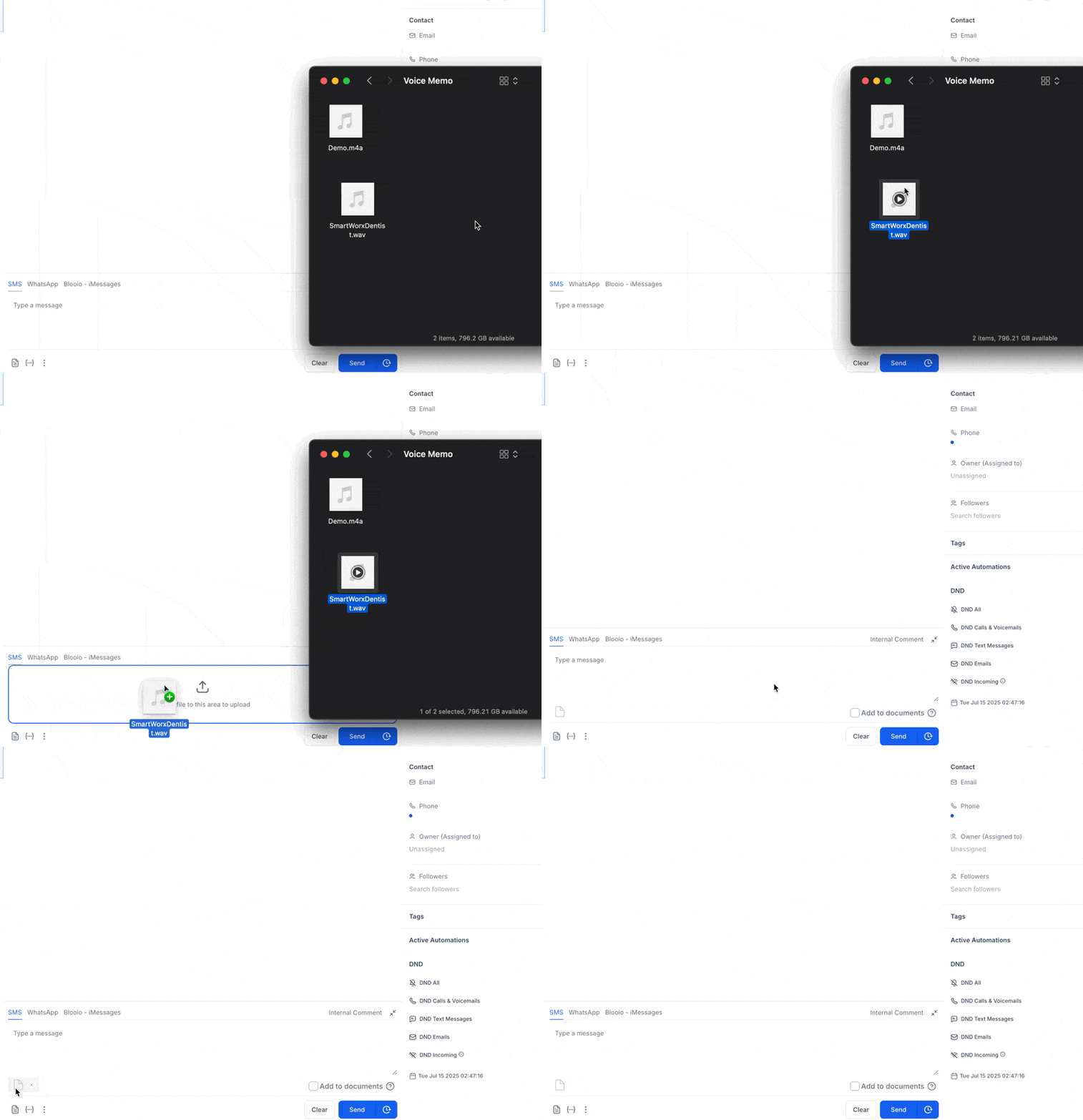
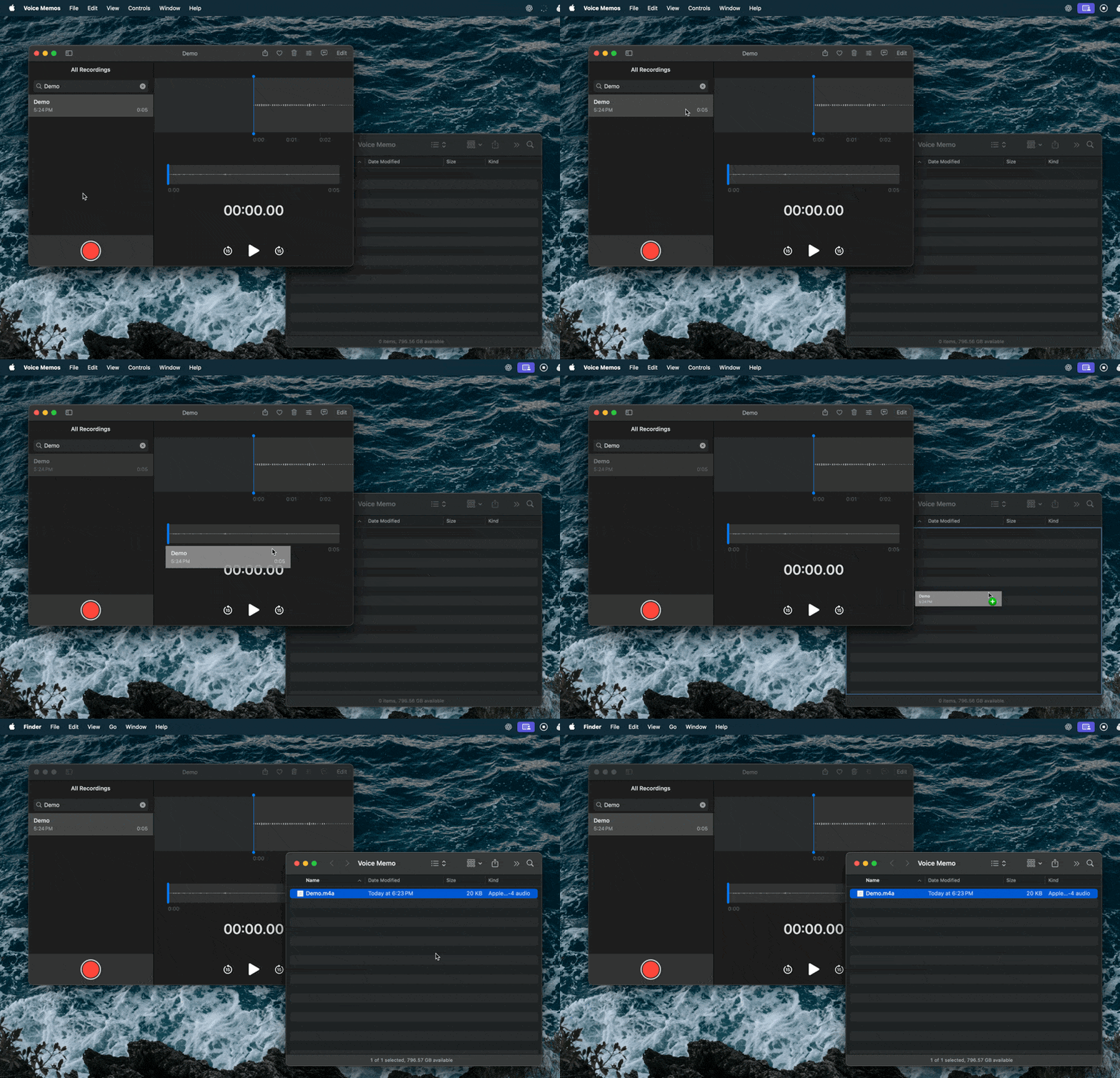
# Conversation view# Human voice noteRecord your voice note. Easiest way is using your voice memos app either on your mac or your iPhone If you record it on your iPhone airdrop it to your computer. If you record it on your mac, drag it out of voice memos to get the actual file If you’re using conversation view you’ll need to convert this file to “wav” or “mp3” since High Level does not support m4a. You can use free online converters like https://cloudconvert.com/m4a-to-wav or https://www.freeconvert.com/m4a-to-wav Once you have the wav file, you can drag it to the conversation view and send it that way
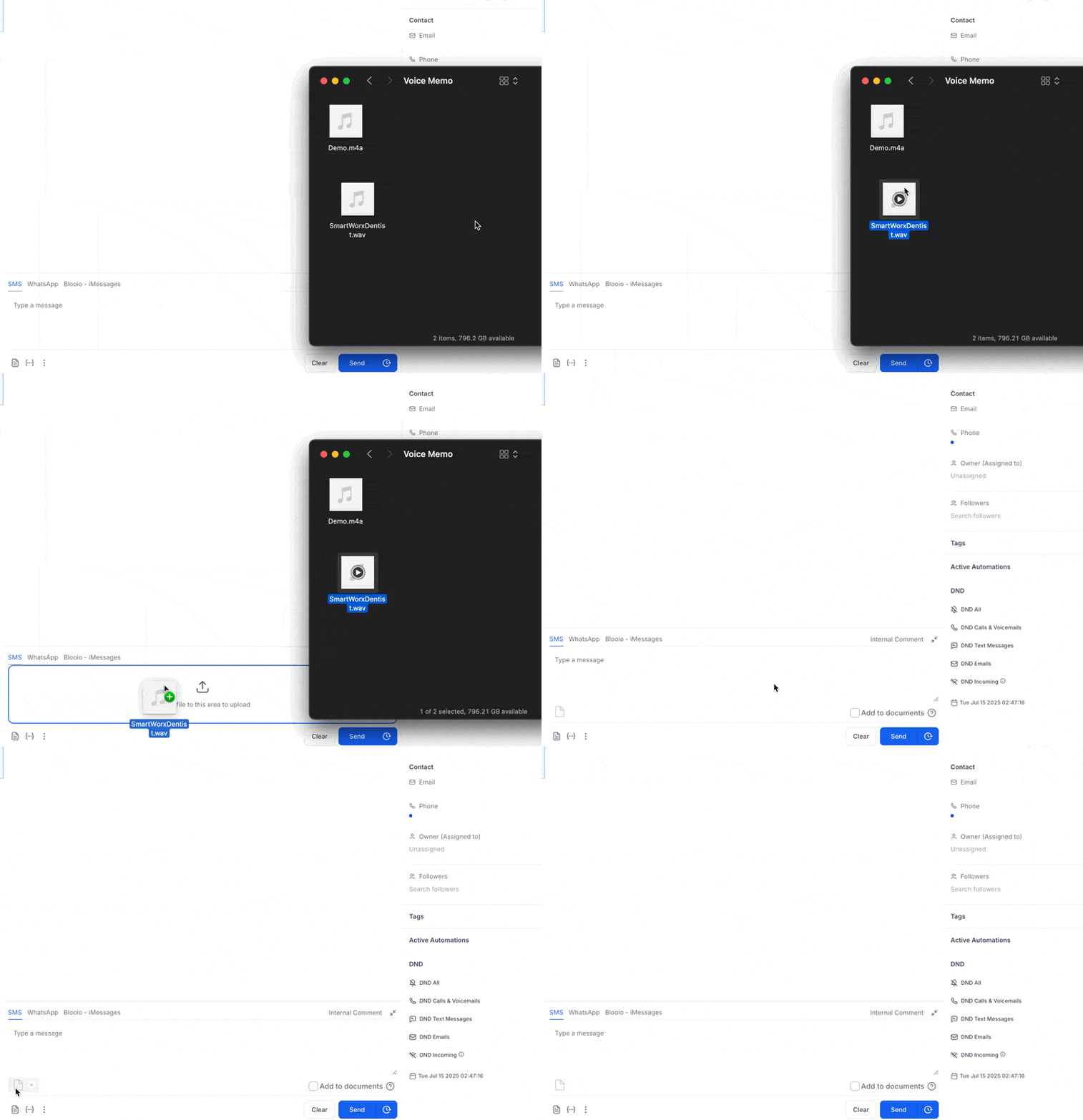
# AI voice noteGenerate your voice noteYou can use elevenLabs , PlayAI or any other text to speech AI provider to create the voice note Pro tip: add background noise to it to make it sound more realistic. See this voice memo Once you have the final file, drag it to the conversation view to send it
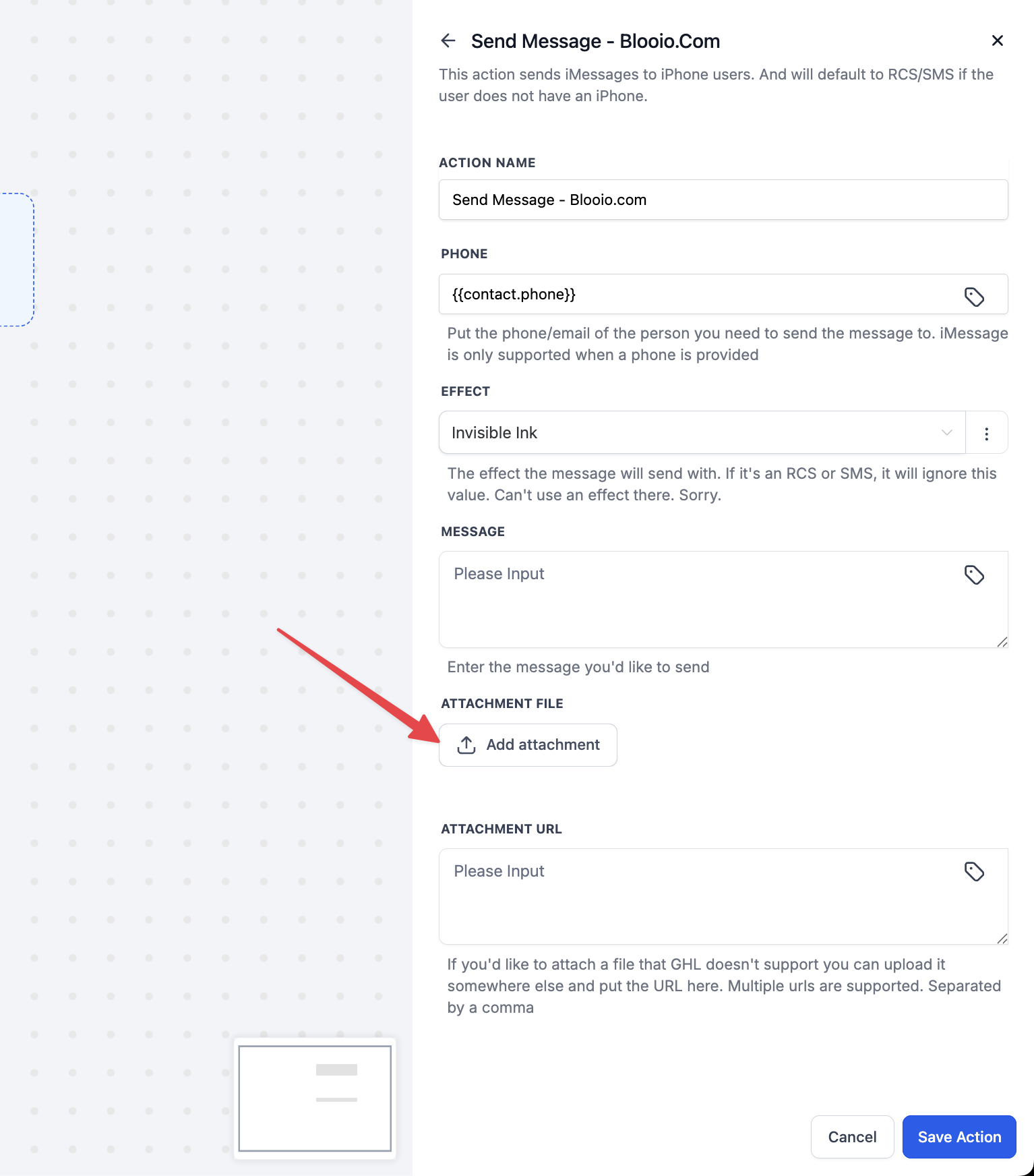
# From workflowsYou can send out voice memos from workflows. Either by using the SMS node (if you switched to Blooio as your default SMS provider) or using the Blooio node if you have a different default SMS provider.
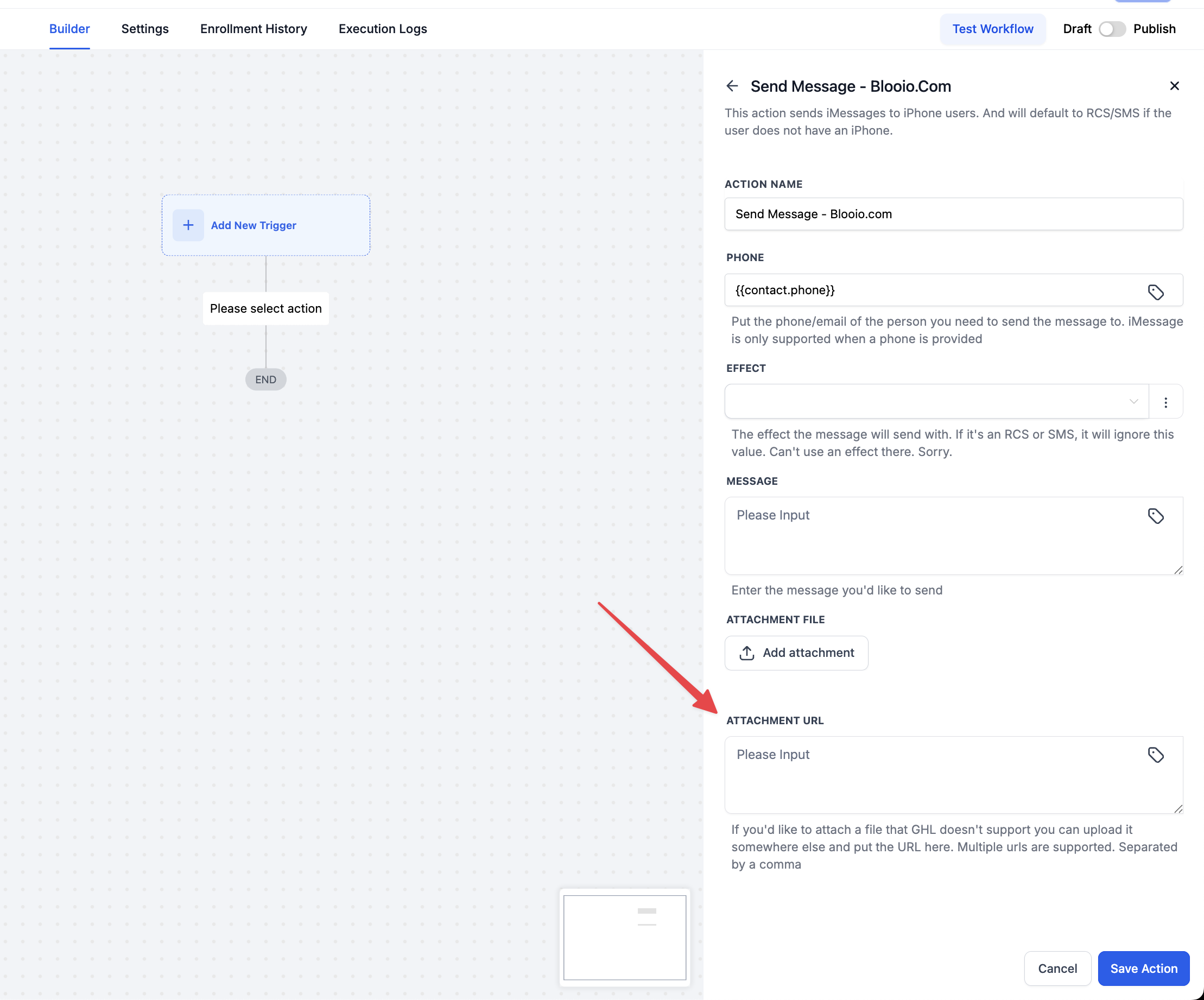
# Dynamically generated voice memosYou can use the webhook node in high level workflows to generate the voice memos dynamically using values from your contact like first name, etc. Once you have the URL of the file, you can it in the Blooio node to send out the file
# Manually generated voice memosRecord your voice note. Easiest way is using your voice memos app either on your mac or your iPhone If you record it on your iPhone airdrop it to your computer. If you record it on your mac, drag it out of voice memos to get the actual file If you’re using conversation view you’ll need to convert this file to “wav” or “mp3” since High Level does not support m4a. You can use free online converters like https://cloudconvert.com/m4a-to-wav or https://www.freeconvert.com/m4a-to-wav Once you have it upload it in the workflow node and use it in your workflows
Didn't find what you needed?
Contact support