An Apple Messages for Business sandbox is an internal test account. You can message approved testers before a commercial account is branded and reviewed. You need a Blooio organization to paste the Business ID into.
#Sign in and accept the register terms
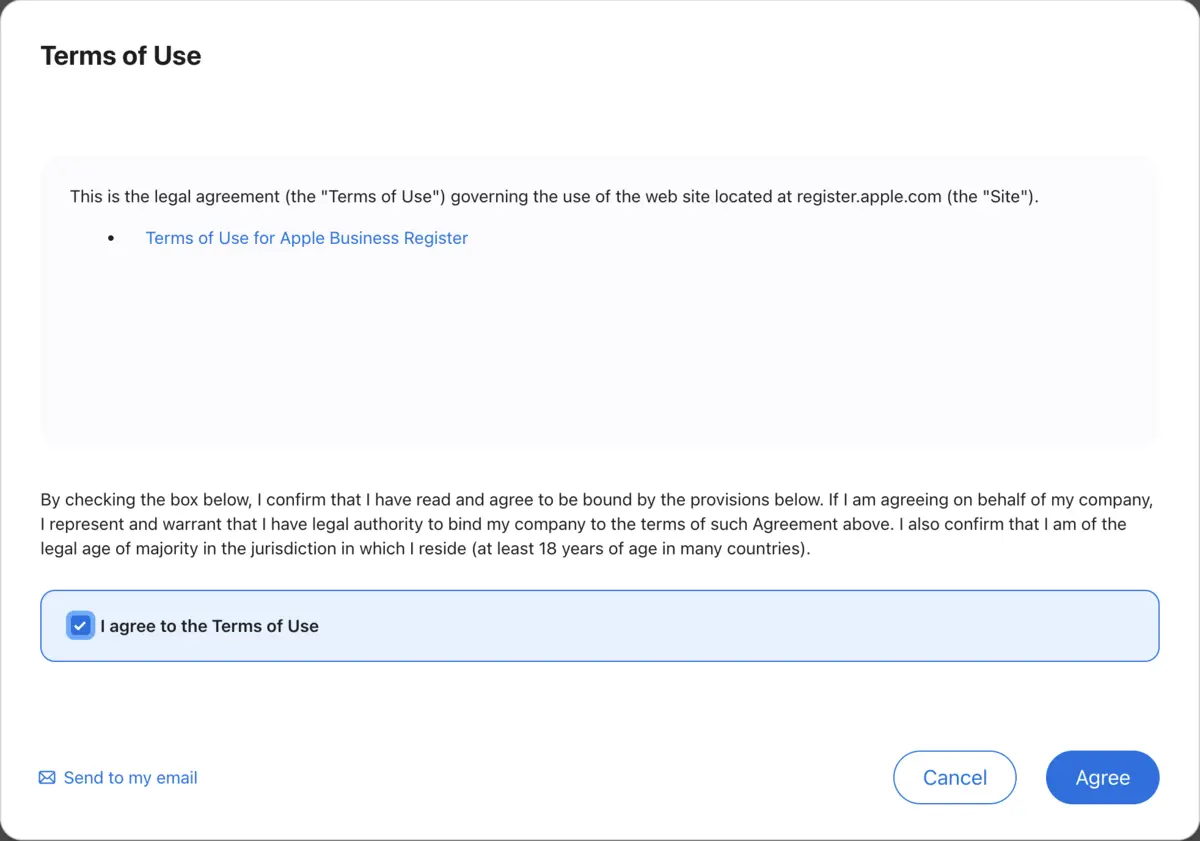
Open Apple Business Register and sign in with the Apple Account that should own the business. A new account stops on Terms of Use. Check I agree to the Terms of Use, then choose Agree.
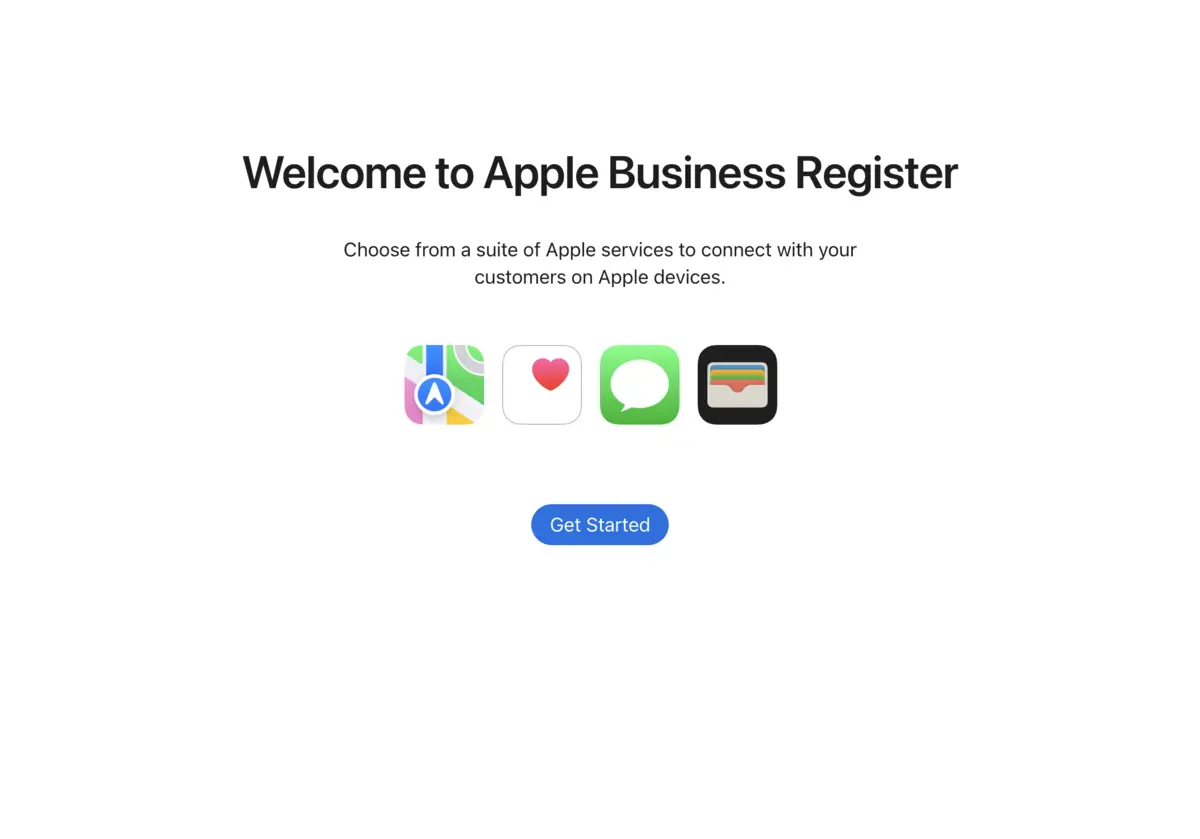
Choose Get Started.
#Add Messages for Business
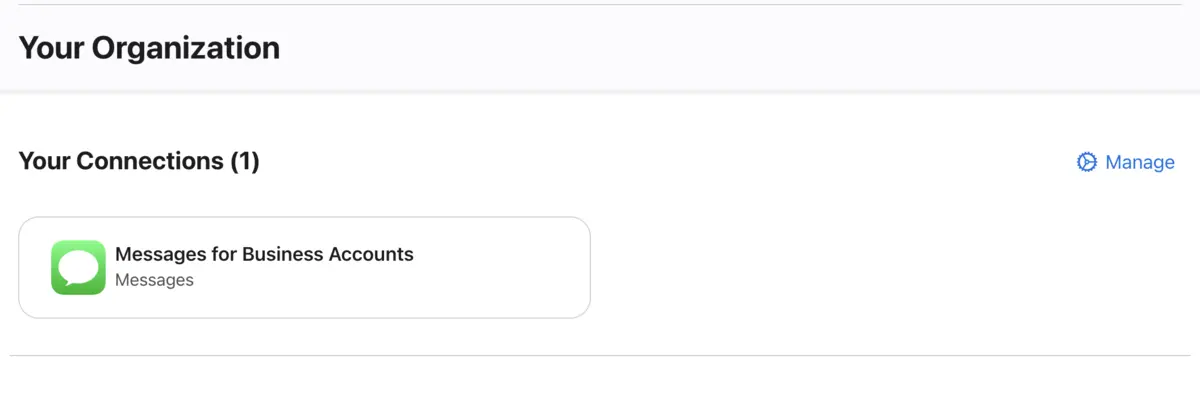
On Your Organization, find Messages and choose Add next to Messages for Business Accounts. The button changes to Remove, which means it is selected. Scroll to the bottom and choose Done.

Your Connections then lists Messages for Business Accounts. Open it.
#Accept the Messages terms and policies
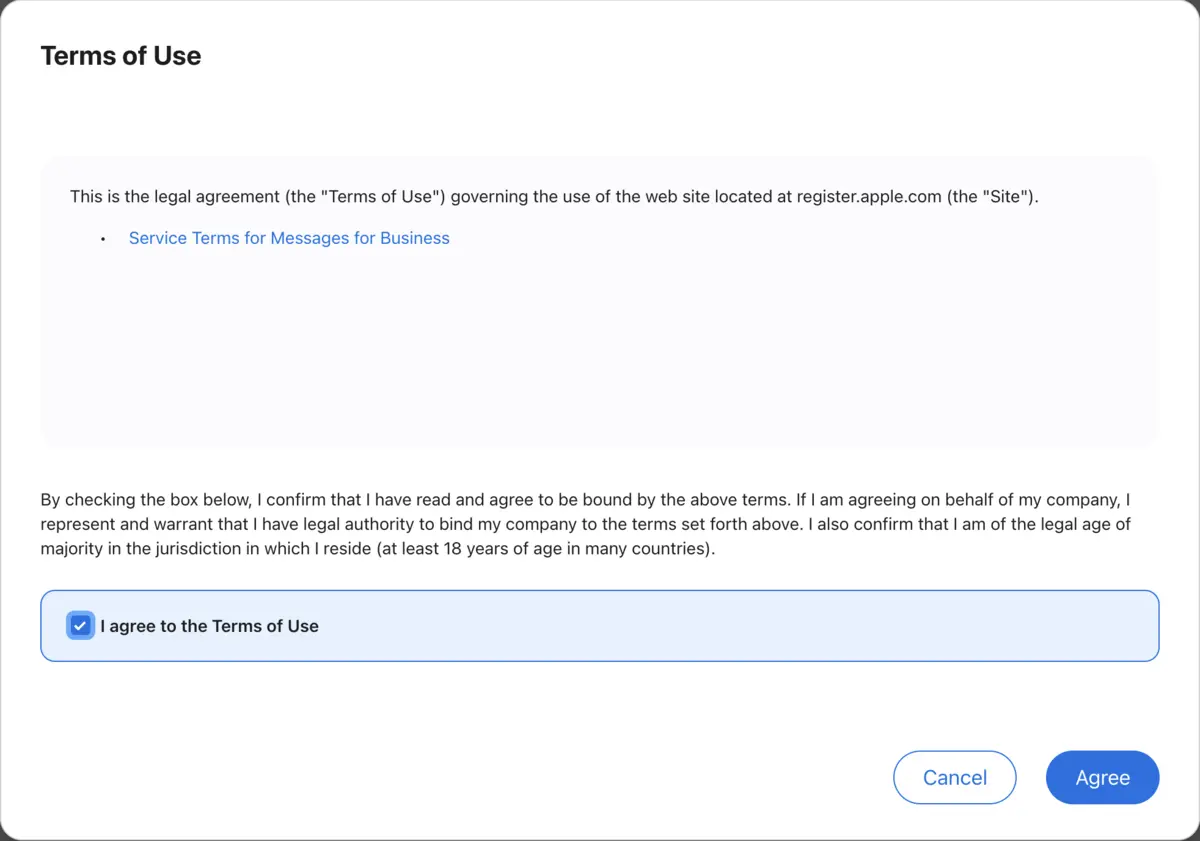
Apple asks you to accept the Service Terms for Messages for Business separately from the register terms. Check I agree to the Terms of Use, then choose Agree.
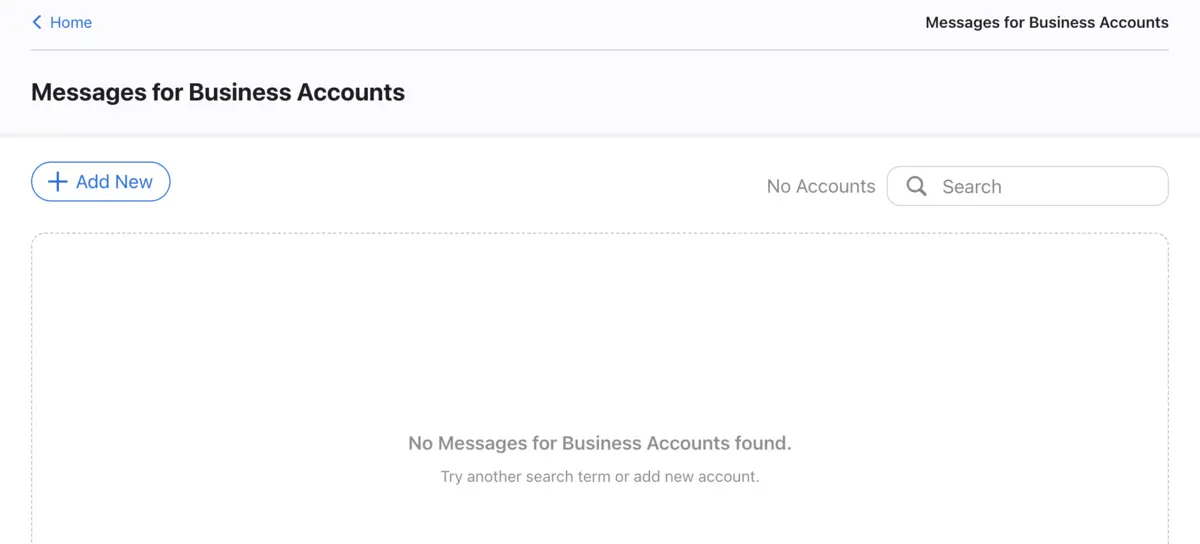
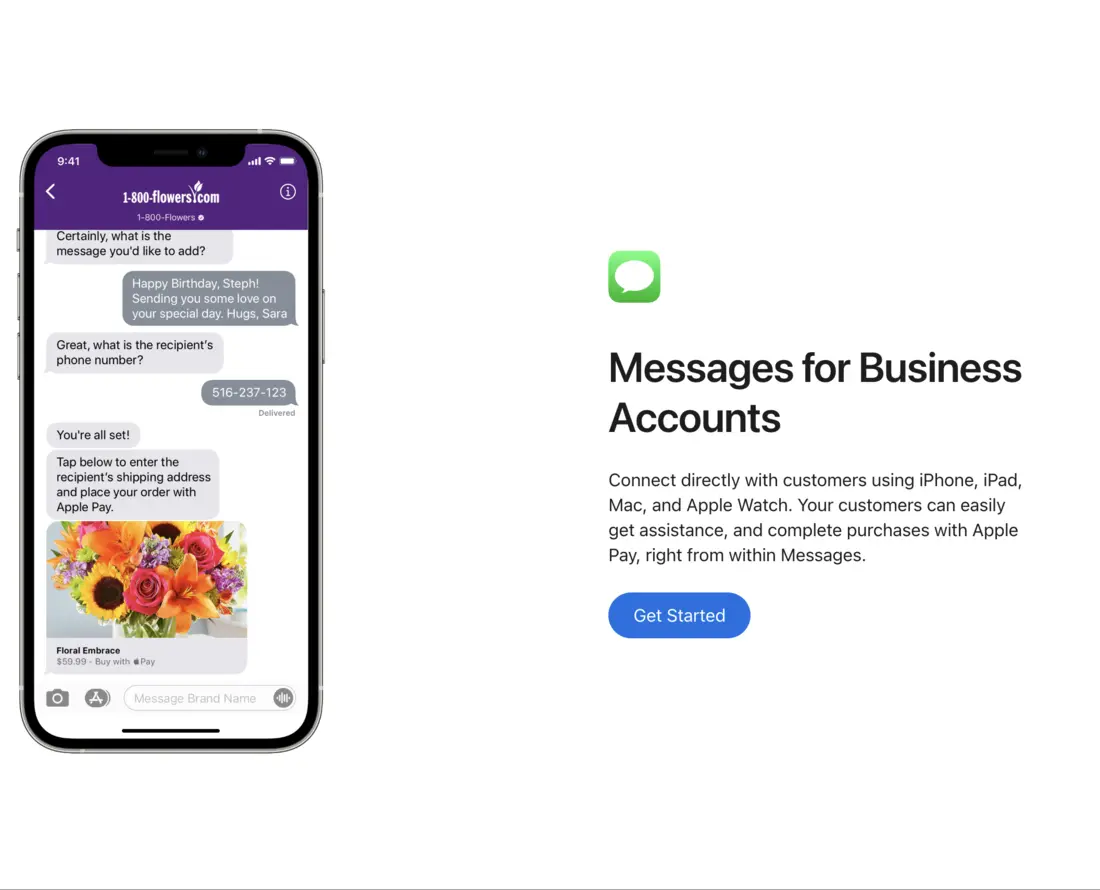
The account list is empty. Choose Add New, then Get Started.
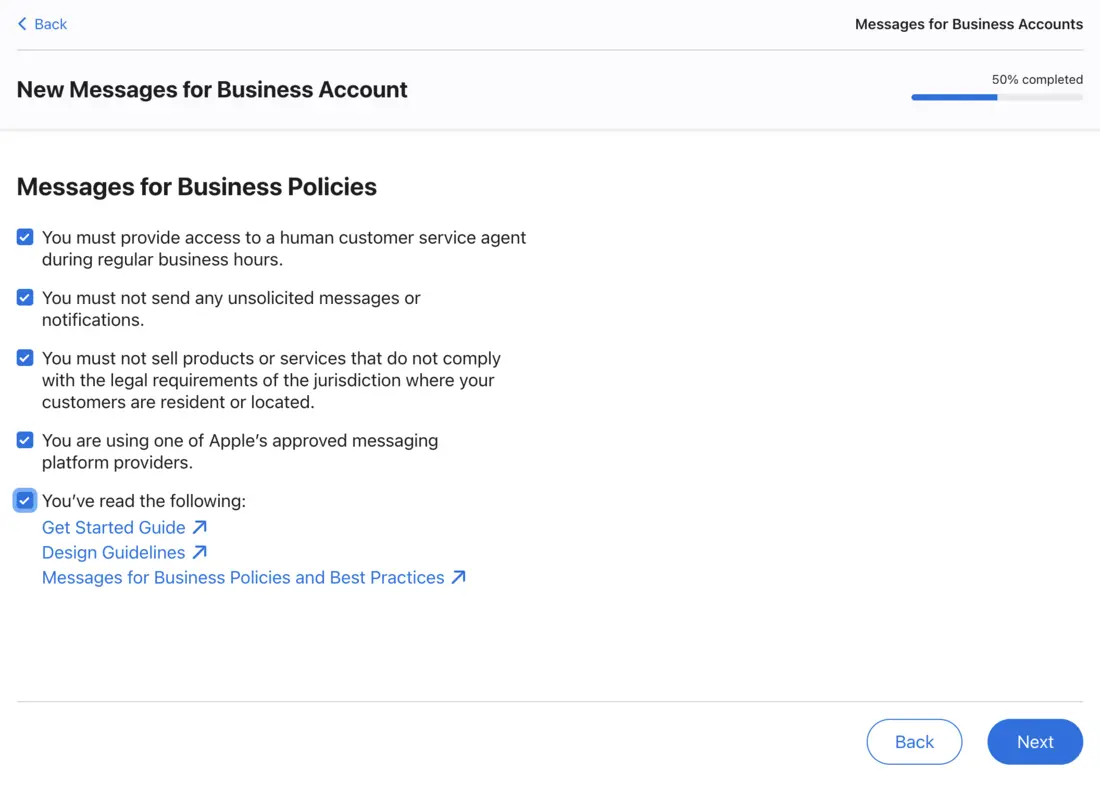
On Messages for Business Policies, check every statement, including the one that says you are using an approved messaging platform. Next stays off until all five are checked.
#Create an internal test account
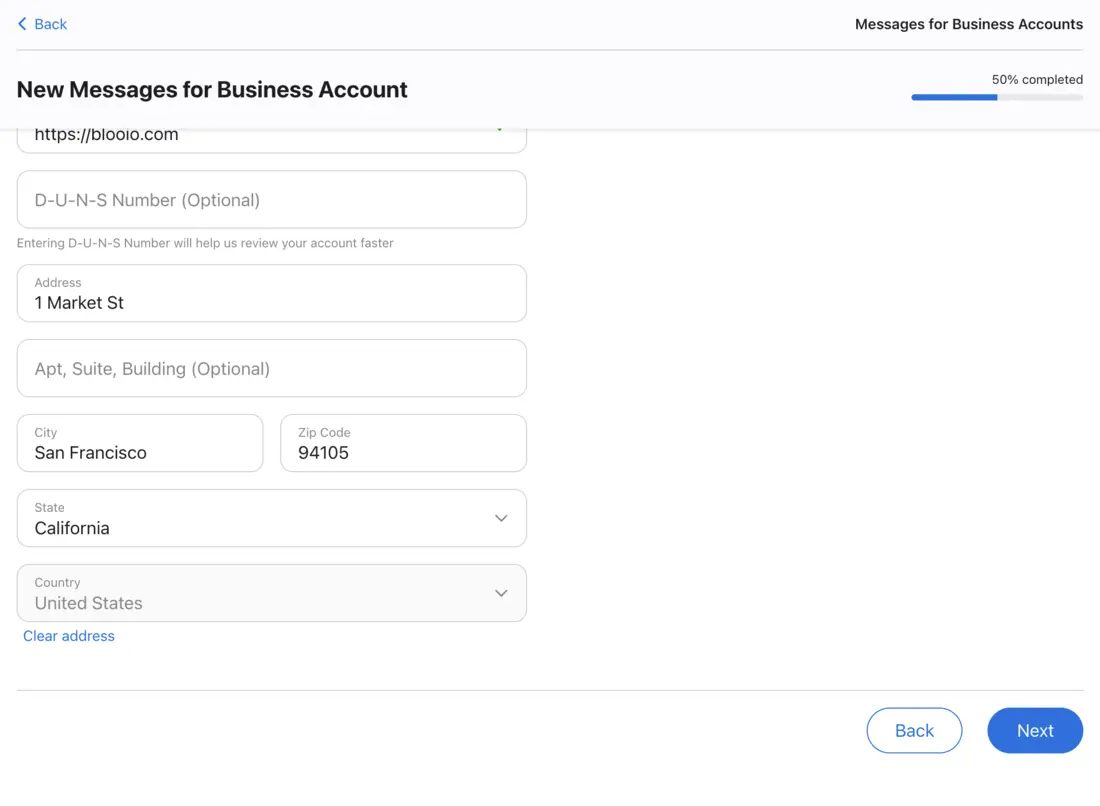
Enter the legal name, website, and head office. For the address, search and select a result. Typing a city alone leaves the field empty.
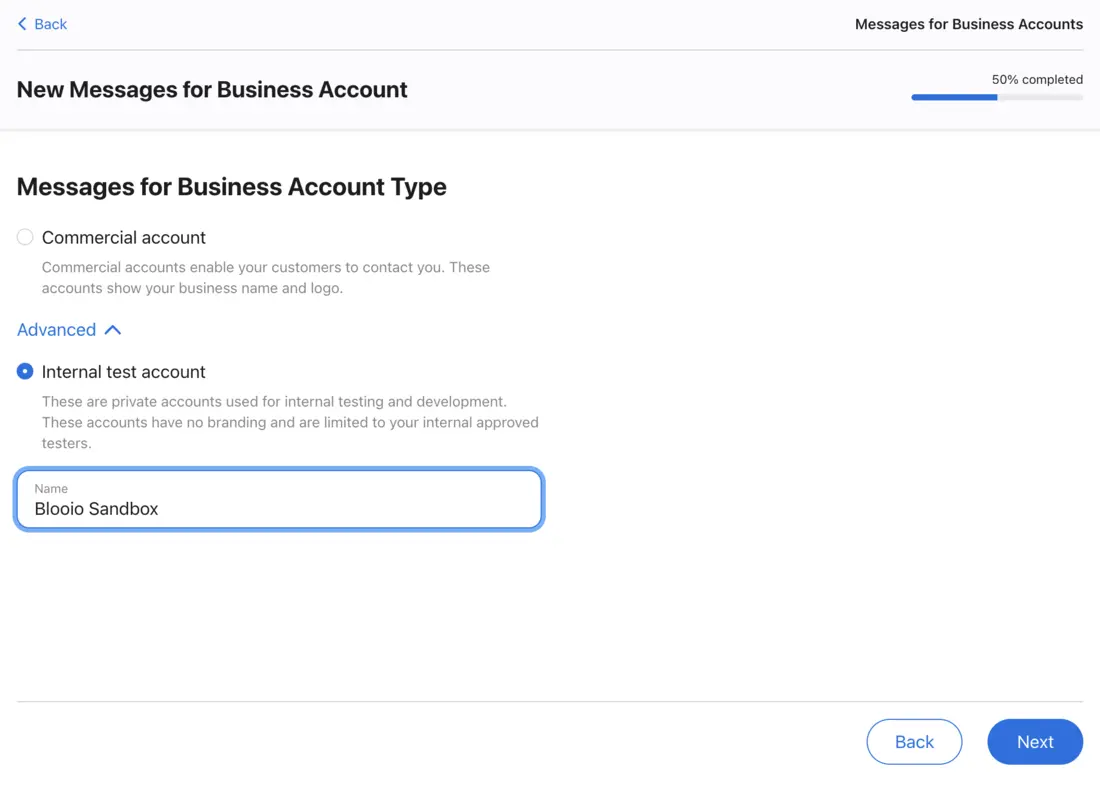
On Messages for Business Account Type, open Advanced and choose Internal test account. Name the account, then continue. A commercial account is the branded account customers see. A sandbox is the internal test account.
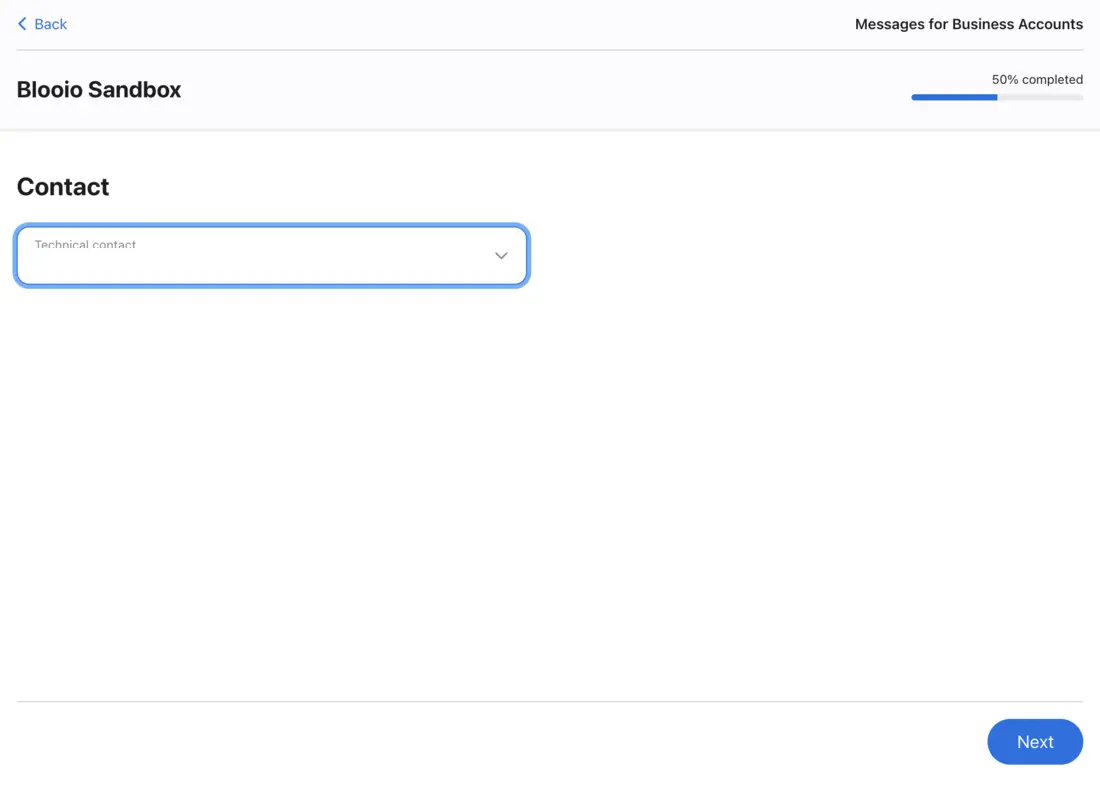
Choose a technical contact from the people on this Apple Account, then continue.
#Choose Blooio as the messaging platform
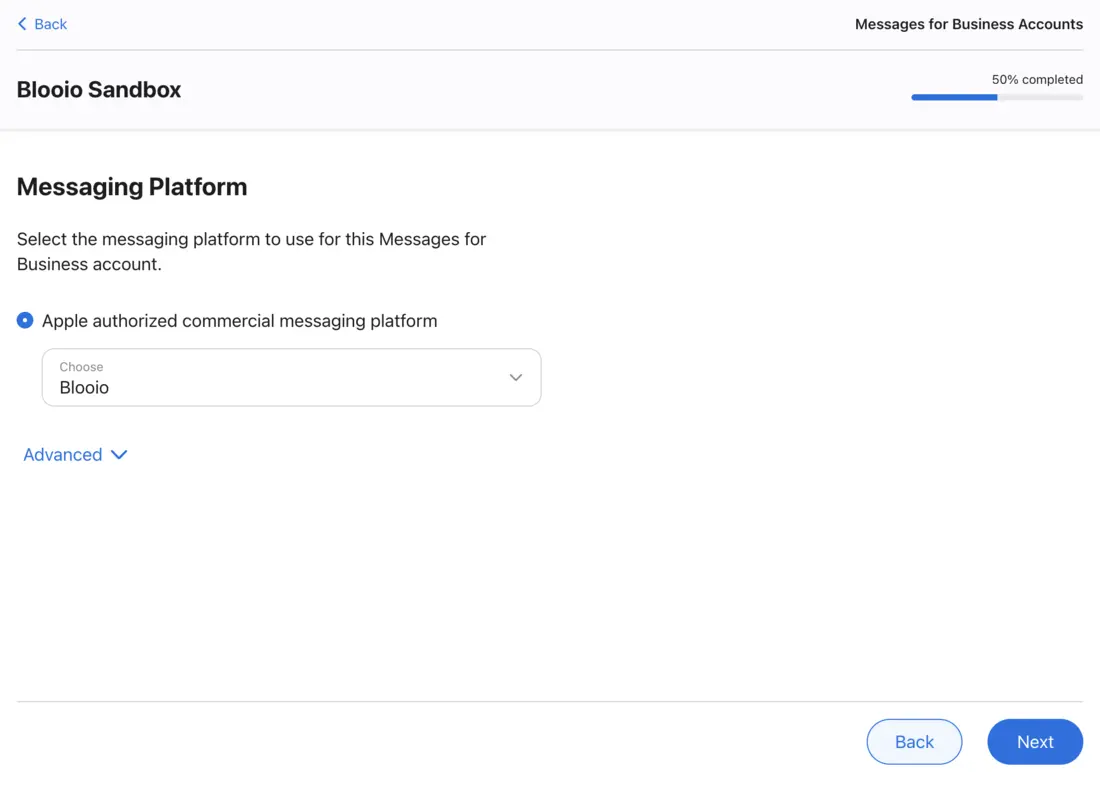
Keep Apple authorized commercial messaging platform selected. Open Choose and select Blooio, then Next.
#Add tester Apple Accounts
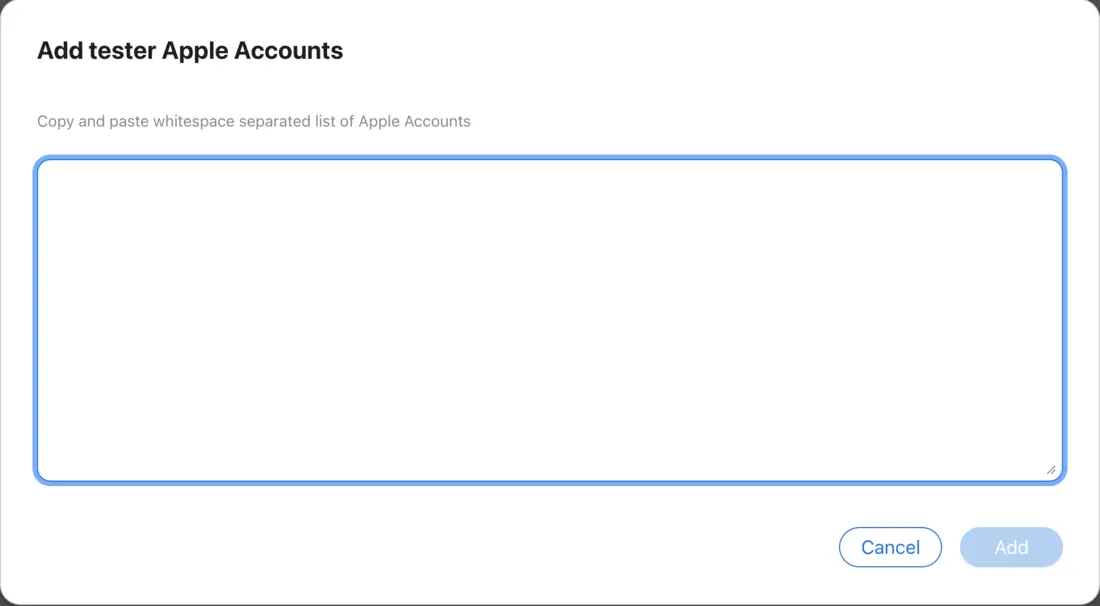
Choose Add Apple Accounts and paste the Apple Accounts that will test from their iPhones, one per line. Send the testing instructions when Apple offers to. Submit the list before you leave the page.
#Copy the Business ID
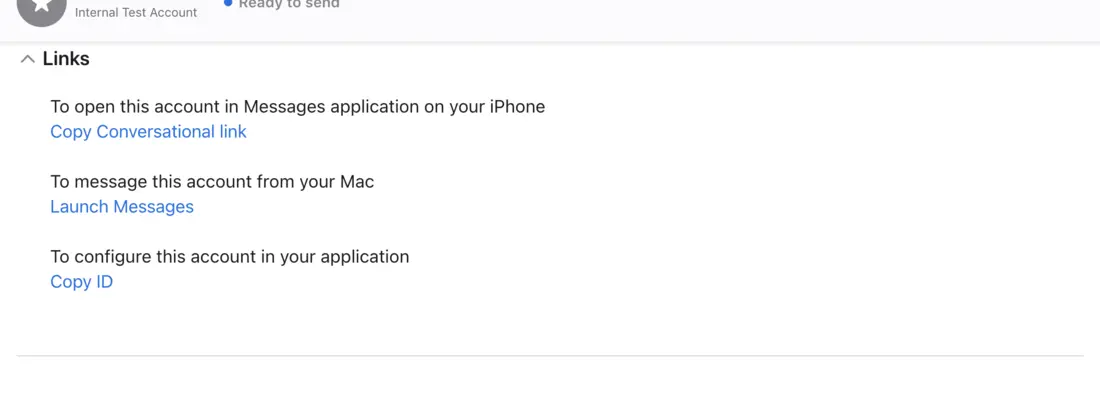
Open the account. When it says Ready to send, expand Links. Under To configure this account in your application, choose Copy ID. That copied value is the Business ID.
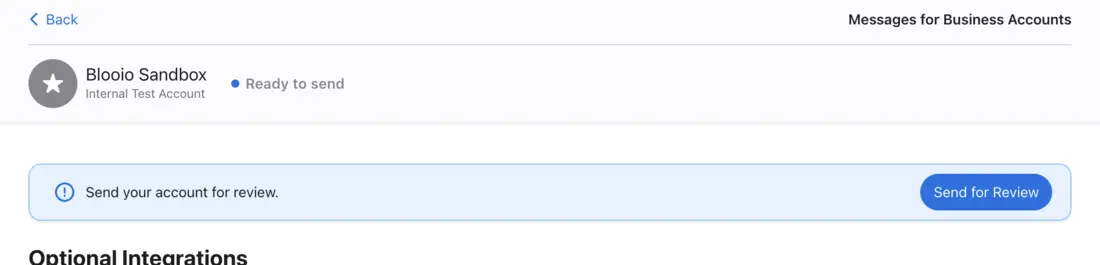
Send for Review when you are ready for Apple to look at the account. You can copy the Business ID before you send it.
#Connect it in Blooio
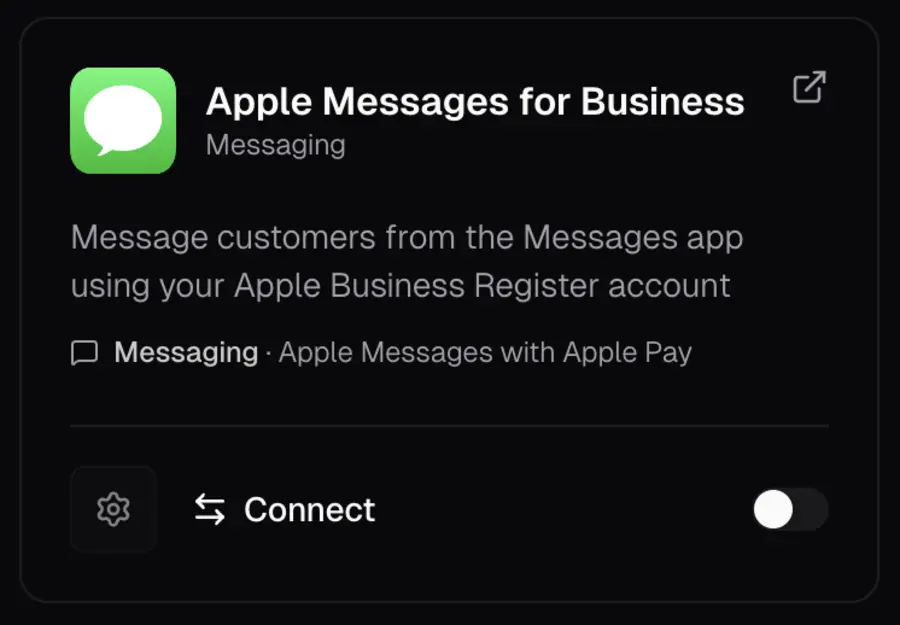
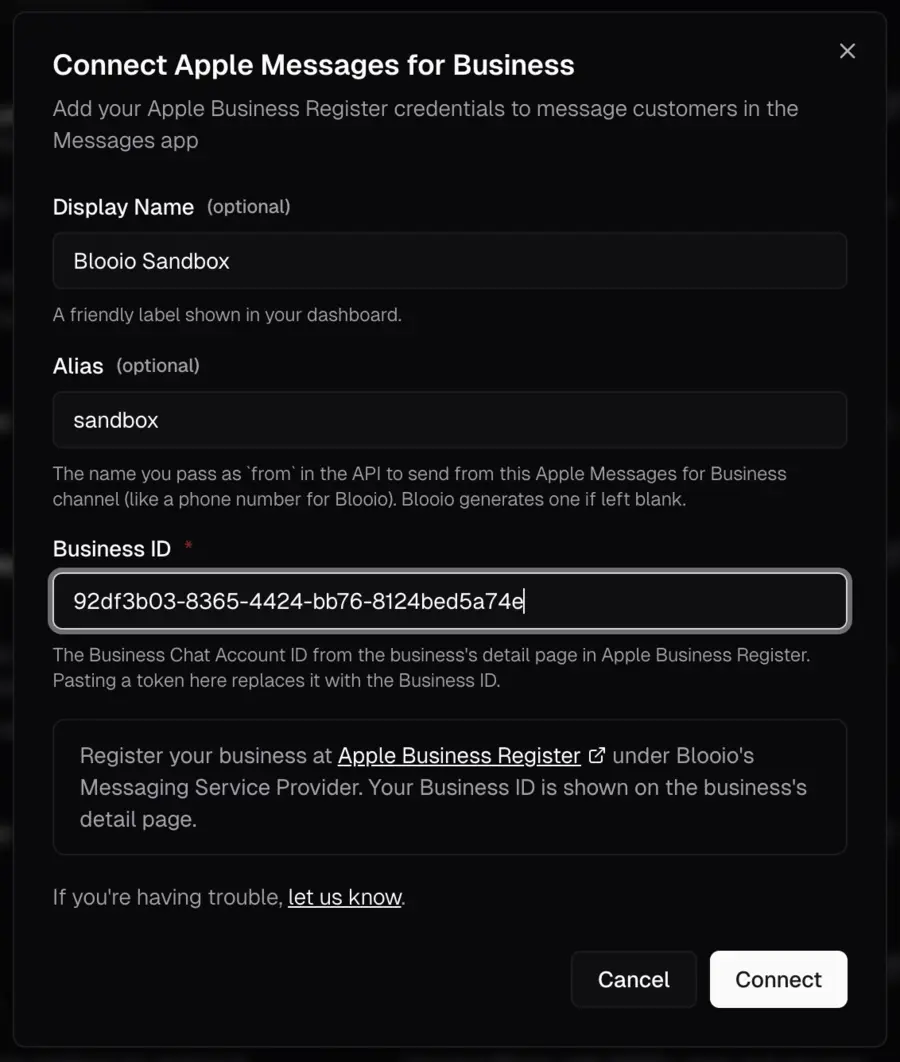
In Blooio, open the organization that should own this account. Create one if you do not have it yet, and add teammates who should manage it. Open Integrations and choose Connect on Apple Messages for Business.
Display Name is the label in your dashboard. Alias is the name you pass as `from` in the API, such as `amb/sandbox`. Blooio creates an alias if you leave it blank. Paste the Business ID, then choose Connect.
Blooio confirms the connection and shows a Business Chat link customers can use to open the conversation in Messages.
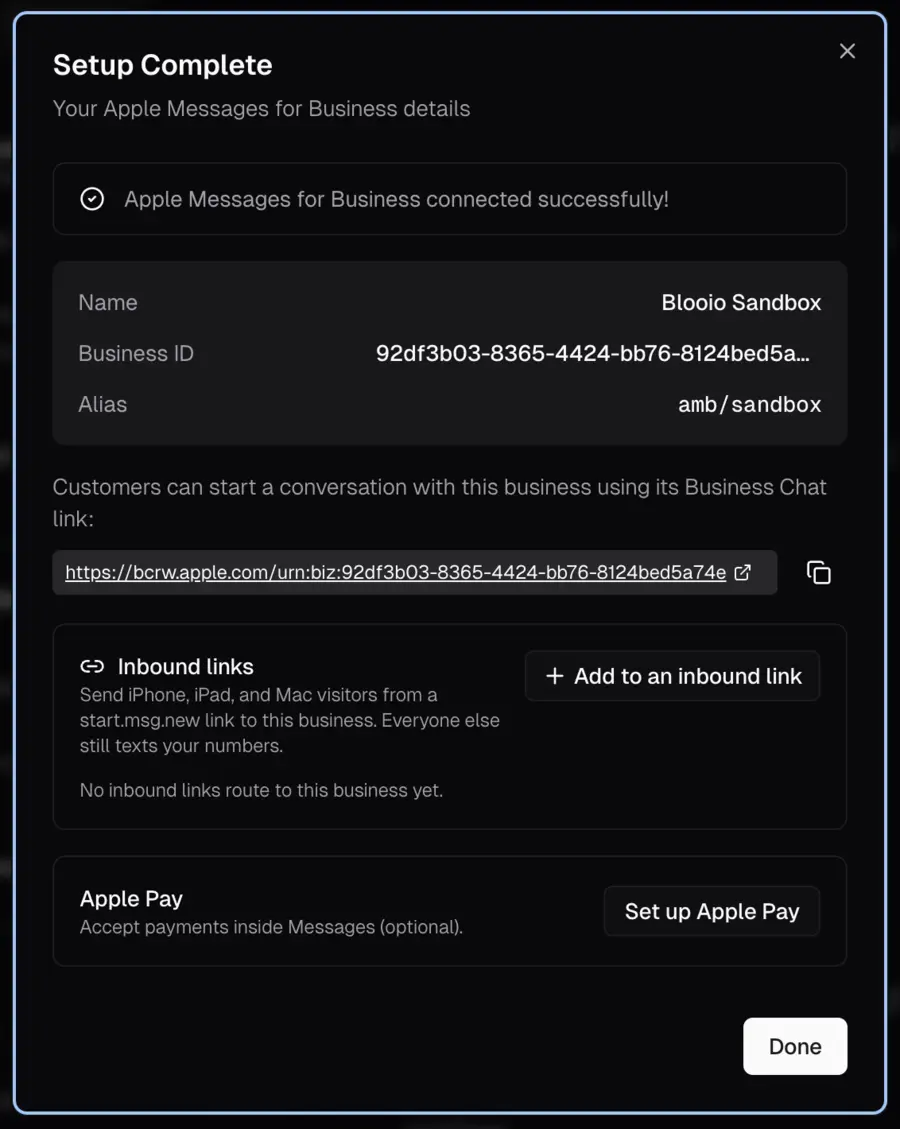
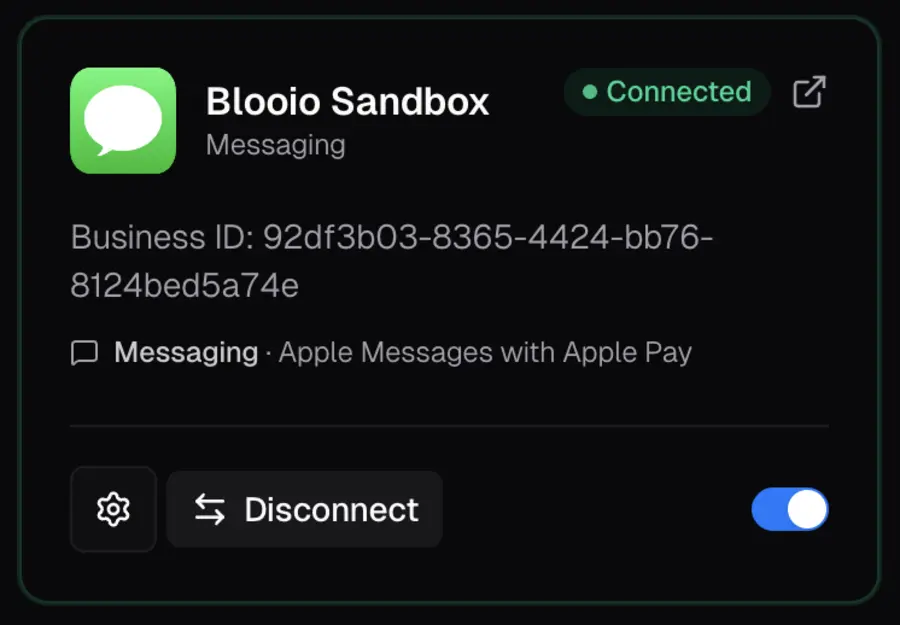
The Integrations card then shows Connected and the Business ID.